Have you ever watched a film and been captivated by a shot where the world seems to spin around the subject, creating a dizzying, dreamlike, or intensely dramatic effect? That’s the magic of the Inception Mode, also widely known as Vortex Mode or the Barrel Roll, a popular cinematic technique available on most modern gimbals. This dynamic shot can elevate your videography, adding a professional and high-impact visual flair to your projects. If you’re ready to transform your footage from ordinary to extraordinary, understanding and mastering the Inception Mode (Vortex) on your gimbal is an essential skill. This comprehensive guide will walk you through everything you need to know, from preparation to advanced shooting techniques, ensuring you can create breathtaking spinning shots with virtually any gimbal.
Understanding the Inception Mode (Vortex Effect)
At its core, the Inception Mode, or Vortex Effect, is a distinctive camera movement where your camera rotates 360 degrees along its roll axis while maintaining its position relative to the subject. This creates a mesmerizing, revolving shot that can dramatically alter the viewer’s perception of space and time. Imagine the iconic spinning hallway scene from the movie Inception – that’s the visual inspiration behind this mode.
The beauty of this effect lies in its versatility. It can evoke a sense of disorientation, tension, excitement, or even playful chaos, making it an incredibly powerful tool for visual storytelling. While various gimbal manufacturers might label it differently—from “Barrel Roll” on some DJI models to “3D Fantasy Mode” or simply “Vortex Mode” on others—the underlying principle remains the same: a controlled, continuous rotation of your camera for a visually striking spin.
Preparing Your Gimbal for Inception Mode Shots
Before diving into the creative spins, proper preparation is key to ensuring smooth, professional-looking footage and protecting your equipment. Just like any other advanced gimbal move, the Inception Mode demands a well-balanced setup.
First and foremost, balancing your camera on the gimbal is non-negotiable. An unbalanced setup will not only result in shaky, unwatchable footage but can also put undue strain on your gimbal motors, potentially shortening its lifespan. Take the time to carefully balance all three axes – tilt, roll, and pan – according to your gimbal’s specific instructions. This ensures that the gimbal motors aren’t fighting gravity, allowing for fluid and effortless rotations.
Secondly, ensure your gimbal’s firmware and companion app are up to date. Manufacturers frequently release updates that improve performance, add new features, or refine existing modes. A current firmware can often provide smoother operation and more precise control over the Inception Mode settings. Familiarize yourself with your gimbal’s basic controls, especially the joystick and mode buttons, as these will be crucial for activating and adjusting the Vortex Effect.
Step-by-Step Guide: Activating Inception Mode on Your Gimbal
Activating the Inception Mode is generally straightforward, though the exact method can vary slightly depending on your gimbal’s brand and model. The good news is that most gimbals follow a similar logic, making it accessible to users of various equipment.
General Activation Methods
For the vast majority of gimbals, entering Inception Mode involves a specific sequence of button presses or selection through an interface.
- Mode Button Press: Many gimbals utilize a dedicated “Mode” (often labeled “M”) button. You might need to press this button a specific number of times in quick succession – commonly three or four times – to toggle into Inception Mode. For example, on some Hohem gimbals, a quadruple tap on the mode button might activate it. On others, like certain Zhiyun models, a triple press could be the key.
- Gimbal Screen/Menu: Higher-end gimbals often feature an OLED screen or a menu wheel. In these cases, you might navigate through the gimbal’s menu system to find and select “Inception Mode,” “Vortex Mode,” or “Barrel Roll.” Once selected, the gimbal will typically orient the camera for the spin.
- Companion App: Almost all modern gimbals come with a smartphone companion app. These apps often provide a more visual and intuitive way to access special modes. Look for a “Moment” or “Creative” section within the app, where you can select “Inception” or “Vortex” and initiate the shot. The app often allows for more precise control over parameters like speed and direction before you even start recording.
|
Our Picks for the Best Washing Machine in 2026
As an Amazon Associate I earn from qualifying purchases.
|
||
| Num | Product | Action |
|---|---|---|
| 1 | COSTWAY Portable Washing Machine, Twin Tub 26lbs Capacity Laundry Washer, 18lbs Washer and 8lbs Spinner Combo with Timer Knobs, Built-in Drain Pump, Compact Washer for Home Dorm Apartment, Blue+White |

|
| 2 | Avanti Portable Compact Washing Machine for Clothes/Laundry, 0.84 Cu. Ft. Capacity, Standard Sink/Faucet Attachment for Apartment, Dorm, RV, White |
|
| 3 | Portable Washing Machine - Compact 2.0 Cu.ft Portable Washer, Full-Automatic Top Loader for Space Saving, Ideal for Apartments, Homes, and Dorms, 10 Wash Cycles, Low Noise, IPX4 with Drain Pump |
|
| 4 | Giantex Portable Washing Machine, 17.6lbs Compact Washer Spinner Combo with Pump Drain, Twin Tub 11lbs Wash & 6.6lbs Spin, Lavadoras Portatiles for Apartment RV Dorm College (White & Blue) |
|
| 5 | Waterjoy Portable Washing Machines, 7.7 lbs Load Capacity Portable Washer and Dryer Combo with Built-in Barrel Light & LED Display for Household and Apartment (Blue) |
|
| 6 | COSTWAY Portable Washing Machine, Twin Tub 26 Lbs Capacity, 18 Lbs Washer and 8 Lbs Spinner, Compact Washer with Control Knobs, Timer Function, Drain Pump, Laundry washer for Apartment RV, Blue |
|
| 7 | Giantex Portable Washing Machine, 20lbs Capacity, Twin Tub 2lbs Washer & 8lbs Spinner Combo, Compact for Apartment RV Dorms, Blue & White, GT24267-PE |
|
| 8 | COSTWAY Portable Washing Machine, Twin Tub 26lbs Capacity Laundry, 18lbs Washer and 8lbs Spinner Combo with Timer Knobs, Built-in Drain Pump, Compact Washer for Home Dorm Apartment (Grey+White) |
|
| 9 | Portable Washing Machine,16L Upgraded Large Capacity Portable Washer With 3 Modes Deep Cleaning.Suitable For Travel, Camping,Apartments, Dormitories, Hotels (Green) |
|
| 10 | Giantex Portable Washing Machine, 21lbs Capacity, 14.4lbs Washer and 6.6Llbs Spinner, Compact for Apartment RV, White & Gray, GT-GE-10390US-GR-FP |
|
Always refer to your specific gimbal’s user manual or app interface if you’re unsure. While these methods cover most scenarios, slight variations exist across brands.
Controlling Speed and Direction
Once Inception Mode is active, controlling the rotation is typically done via the gimbal’s joystick.
- Joystick Control: Pushing the joystick left or right will usually initiate and control the direction and speed of the camera’s roll. Pushing it further in one direction will increase the rotation speed, while a gentler nudge will result in a slower, more deliberate spin.
- Gimbal/App Settings: Many gimbals allow you to pre-set or fine-tune the rotation speed and direction directly on the gimbal’s screen or through the companion app. You might find options to adjust speed on a scale (e.g., 0-100%) and select between clockwise or counter-clockwise rotation.
- Continuous vs. Fixed Rotation: Some advanced gimbals offer options for continuous, infinite barrel rolls or fixed rotations (e.g., a single 180-degree or 360-degree spin that stops automatically). Experiment with these settings to achieve different dramatic effects.
Advanced Techniques for Stunning Inception Shots
While simply activating the Inception Mode is a great start, combining it with other techniques can unlock its full cinematic potential.
Incorporating Movement
The Inception Mode truly shines when combined with physical movement. Don’t just stand still; move with your gimbal to add depth and dynamism to your shots.
- The “Ninja Walk”: To ensure your footage remains smooth and stable, practice the “ninja walk” – a technique where you bend your knees and walk softly, rolling your feet from heel to toe, to minimize vertical camera bounce.
- Moving Towards/Away from Subject: As the camera spins, slowly walk towards or away from your subject. This creates a compelling visual effect where the background seems to swirl and shrink or expand, drawing the viewer deeper into the scene.
- Tracking a Subject: You can track a moving subject while performing an Inception shot. This requires practice but results in an incredibly dynamic and engaging sequence, especially effective for sports or action.
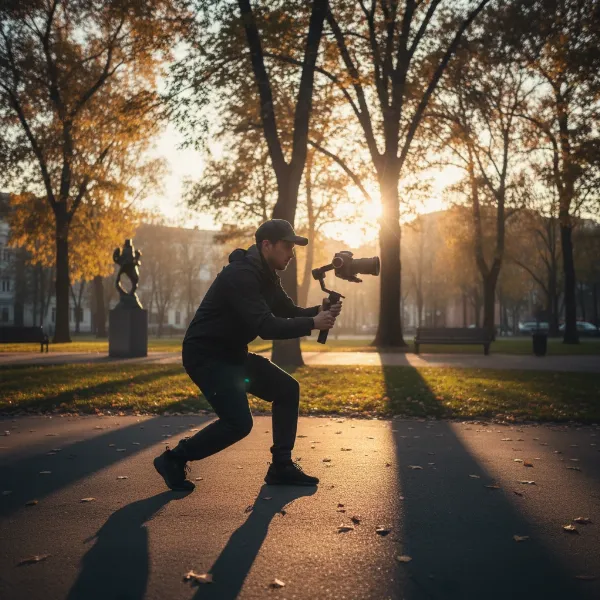 Cinematic gimbal operator performing an Inception Mode (Vortex) shot while moving around a subject outdoors, showcasing smooth camera rotation and forward motion for a dynamic video effect
Optimizing Camera Angles and Environment
The environment and your camera’s angle play a significant role in how impactful your Inception shot appears.
- Slightly Upward Tilt: Many cinematographers find that pointing the camera slightly upward while in Inception Mode enhances the swirling effect. This provides a broader field of view, making the surrounding environment feel more expansive as it spins. Experiment with slight upward or downward tilts to create unique perspectives – an upward tilt can give a sense of ascension, while a downward tilt might feel like spiraling towards the ground.
- Utilizing Depth: Inception shots are most effective in environments with interesting foreground and background elements. Hallways, tunnels, tree-lined paths, or cityscapes with prominent architecture can amplify the vortex effect, as the spinning elements create a stronger visual impact. Avoid plain, open spaces where the rotation might feel less dramatic.
Camera Settings & Post-Production Tips
Optimizing your camera settings and utilizing post-production can further refine your Inception Mode footage.
- High Frame Rates: To achieve a super smooth look or to enable dramatic slow-motion effects, consider shooting in higher frame rates (e.g., 60 frames per second or 120 frames per second). This gives you more flexibility in editing to slow down the spin for a dreamlike quality or speed ramp for an energetic burst.
- Post-Stabilization and Smoothing: Even with a perfectly balanced gimbal, minor jitters can sometimes occur. Utilize stabilization tools in your video editing software to further smooth out the footage.
- Color Grading: Enhance the mood of your Inception shot with intentional color grading. A cooler, desaturated look might fit a disorienting, tense scene, while vibrant, warm tones could convey excitement or wonder.
Creative Applications of the Vortex Effect
The Inception Mode isn’t just a fancy trick; it’s a powerful storytelling device. Here are a few creative ways to integrate it into your videos:
- Dramatic Transitions: Use the spinning effect to transition between different scenes or locations, creating a seamless and visually engaging link.
- Highlighting Disorientation: Perfect for dream sequences, moments of confusion, or when a character is overwhelmed, the Vortex Effect immediately conveys a sense of disorientation to the viewer.
- Action and Sports: Add an energetic and dynamic feel to action shots, making the viewer feel immersed in the fast-paced movement.
- Reveals and Introductions: Begin a shot with a rapid spin that slows down to reveal a new subject or location, creating a grand entrance.
- Abstract Art: Use the mode to create abstract, swirling patterns with lights or textures for artistic and experimental videos.
Troubleshooting Common Inception Mode Issues
Even experienced videographers can encounter challenges with Inception Mode. Here are some common issues and how to troubleshoot them:
- Jerky or Unstable Rotation: The most frequent culprit is an unbalanced gimbal. Re-balance your camera meticulously. Also, check for loose parts or accessories that might be causing uneven weight distribution.
- Gimbal Not Entering Mode: Double-check your gimbal’s manual for the exact button sequence or menu option. Some gimbals require specific conditions (e.g., being in a particular follow mode) before Inception Mode can be activated.
- Inconsistent Spin Speed: Ensure your joystick movements are smooth and consistent. If controlling via an app, verify the speed settings. Firmware updates can sometimes resolve software-related inconsistencies.
- Viewer Disorientation/Dizziness: While the mode is designed to disorient, too much erratic movement or excessively long, fast spins can make viewers nauseous. Aim for intentional, shorter bursts of the effect or use slower, smoother rotations. Pacing is crucial.
- Motor Overload Warning: If your gimbal displays a motor overload warning, it’s a clear sign of improper balancing or an excessively heavy camera setup. Immediately power off and re-balance or reduce the camera payload.
By understanding these potential pitfalls and knowing how to address them, you can ensure a smoother shooting experience and consistently high-quality Inception Mode footage.
Conclusion
The Inception Mode (Vortex) is more than just a cool gimmick; it’s a potent creative tool that, when wielded skillfully, can significantly enhance the cinematic quality of your videos. From its ability to create dramatic transitions to emphasizing disorientation or adding raw energy to action sequences, the spinning effect offers a unique perspective that captivates audiences.
Mastering this technique involves understanding its mechanics, meticulously preparing your equipment, and experimenting with various camera movements, angles, and post-production tweaks. Don’t be afraid to practice, adjust, and explore how this dynamic shot can best serve your storytelling vision. With a little patience and creativity, you’ll be spinning breathtaking, professional-grade footage in no time. So, what story will you tell with your next mesmerizing Inception shot?
Frequently Asked Questions
What is the difference between Inception Mode and FPV Mode on a gimbal?
Inception Mode (Vortex Mode) specifically enables a controlled 360-degree rotation along the camera’s roll axis. FPV (First Person View) Mode, on the other hand, allows all three axes (pan, tilt, and roll) to follow the operator’s movements, giving a more immersive, free-flowing perspective, often used for dynamic, drone-like shots. While FPV can be used to manually create a barrel roll, Inception Mode automates the precise roll axis rotation.
Can I achieve an Inception Mode shot without a dedicated button or app setting?
Some gimbals might not have a dedicated Inception Mode. In such cases, you can often achieve a similar “barrel roll” effect by switching to FPV mode and carefully controlling the roll axis manually with the joystick. This requires more practice to maintain a smooth and consistent rotation, but it’s a viable workaround for gimbals without the specific automated feature.
What kind of shots benefit most from Inception Mode?
Inception Mode excels in creating dramatic, disorienting, or dynamic visual effects. It’s particularly effective for music videos, action sequences, dream sequences, creative transitions between scenes, and adding a sense of grandeur or psychological intensity to a shot. Scenes with interesting backgrounds and sufficient depth tend to maximize the visual impact.
How fast should the rotation be for an effective Inception shot?
The ideal rotation speed depends entirely on the desired artistic effect. A slower, deliberate spin can create a dreamlike or contemplative mood, while a rapid rotation evokes energy, chaos, or disorientation. Experiment with different speeds to match the emotional tone and pace of your video. Often, varying the speed within a single shot can add dynamic flair.
Is using Inception Mode potentially harmful to my gimbal?
When properly balanced and operated within its weight limits, using Inception Mode is generally not harmful to your gimbal. However, repeatedly operating an unbalanced gimbal or exceeding its payload capacity, especially during dynamic movements like Inception Mode, can put excessive strain on the motors and lead to premature wear or damage. Always ensure proper balancing and adherence to manufacturer guidelines.