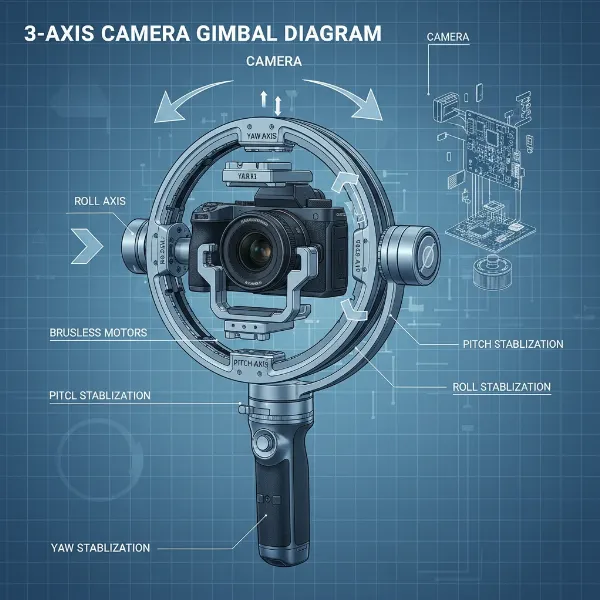
Few things are more frustrating for a videographer or content creator than a gimbal that refuses to connect to its paired device. That smooth, cinematic footage you envision quickly turns into a jumbled mess when your gimbal and smartphone or camera aren’t communicating. Bluetooth connectivity is the backbone of modern gimbal control, allowing seamless adjustments, mode changes, and even trigger functions from your hand. When this vital link breaks down, your creative workflow grinds to a halt. This guide will walk you through a systematic approach to diagnose and resolve common Bluetooth connection issues, ensuring your gimbal is ready to capture stunning footage.
Understanding Common Bluetooth Connection Hurdles with Gimbals
Bluetooth connection issues with gimbals often stem from a few core areas. Sometimes, it’s as simple as an oversight during the initial setup, while other times, it’s a software glitch or interference disrupting the signal. These problems can range from the gimbal not appearing in your device’s Bluetooth list at all to intermittent disconnections that disrupt your shoot. Understanding these underlying causes is the first step toward finding a lasting solution.
Essential Initial Checks Before Troubleshooting
Before diving into complex fixes, it’s crucial to rule out the simplest culprits. Many connection problems can be resolved with these basic checks, saving you time and effort. Always start here to ensure your gimbal and companion device are in optimal condition for pairing.
- Power and Activation: Ensure your gimbal is fully charged and powered on. A low battery can sometimes prevent proper Bluetooth functionality or lead to unstable connections. Similarly, confirm that Bluetooth is enabled on your smartphone or camera.
- Device Bluetooth Settings: Open your phone’s or camera’s Bluetooth settings and check for any existing, potentially problematic connections. If your gimbal was previously paired but is now having issues, it might be beneficial to “forget” or “unpair” that connection before attempting to re-establish it.
- Proximity and Interference: Keep your gimbal and the device you’re connecting it to within a close range, typically a few feet. Walls, other wireless devices, or large metallic objects can interfere with Bluetooth signals. Try moving to an open area away from potential interference sources.
Step-by-Step Troubleshooting for Gimbal Bluetooth Connections
Once you’ve completed the initial checks, it’s time to follow a structured troubleshooting process. These steps cover the most effective methods for resolving a wide range of Bluetooth pairing problems.
1. Master the Pairing Process
|
Our Picks for the Best Washing Machine in 2026
As an Amazon Associate I earn from qualifying purchases.
|
||
| Num | Product | Action |
|---|---|---|
| 1 | Giantex Portable Washing Machine, 21lbs Capacity, 14.4lbs Washer and 6.6Llbs Spinner, Compact for Apartment RV, White & Gray, GT-GE-10390US-GR-FP |

|
| 2 | Portable Washing Machine,16L Upgraded Large Capacity Portable Washer With 3 Modes Deep Cleaning.Suitable For Travel, Camping,Apartments, Dormitories, Hotels (Green) |
|
| 3 | COSTWAY Portable Washing Machine, Twin Tub 26lbs Capacity Laundry, 18lbs Washer and 8lbs Spinner Combo with Timer Knobs, Built-in Drain Pump, Compact Washer for Home Dorm Apartment (Grey+White) |
|
| 4 | Giantex Portable Washing Machine, 17.6lbs Compact Washer Spinner Combo with Pump Drain, Twin Tub 11lbs Wash & 6.6lbs Spin, Lavadoras Portatiles for Apartment RV Dorm College (White & Blue) |
|
| 5 | Giantex Portable Washing Machine, 20lbs Capacity, Twin Tub 2lbs Washer & 8lbs Spinner Combo, Compact for Apartment RV Dorms, Blue & White, GT24267-PE |
|
| 6 | COSTWAY Portable Washing Machine, Twin Tub 26lbs Capacity Laundry Washer, 18lbs Washer and 8lbs Spinner Combo with Timer Knobs, Built-in Drain Pump, Compact Washer for Home Dorm Apartment, Blue+White |
|
| 7 | COSTWAY Portable Washing Machine, Twin Tub 26 Lbs Capacity, 18 Lbs Washer and 8 Lbs Spinner, Compact Washer with Control Knobs, Timer Function, Drain Pump, Laundry washer for Apartment RV, Blue |
|
| 8 | Waterjoy Portable Washing Machines, 7.7 lbs Load Capacity Portable Washer and Dryer Combo with Built-in Barrel Light & LED Display for Household and Apartment (Blue) |
|
| 9 | Avanti Portable Compact Washing Machine for Clothes/Laundry, 0.84 Cu. Ft. Capacity, Standard Sink/Faucet Attachment for Apartment, Dorm, RV, White |
|
| 10 | Portable Washing Machine - Compact 2.0 Cu.ft Portable Washer, Full-Automatic Top Loader for Space Saving, Ideal for Apartments, Homes, and Dorms, 10 Wash Cycles, Low Noise, IPX4 with Drain Pump |
|
The way you initiate a connection is often the most critical step. Gimbals aren’t always plug-and-play, and understanding their specific pairing requirements is key.
Activating your gimbal’s dedicated pairing mode is paramount. This isn’t just turning the gimbal on; it’s a specific action, often a long press of the power button, a combination of buttons, or a distinct sequence, that puts the device into a discoverable state. Always consult your gimbal’s user manual for the exact instructions. Once in pairing mode, your gimbal should broadcast its Bluetooth signal, allowing your smartphone or camera to detect it. Look for a flashing LED indicator on the gimbal, which usually signifies it’s ready to pair.
When connecting, always prioritize using the manufacturer’s dedicated smartphone application. Brands like DJI, Zhiyun, Feiyu, and Hohem provide their own apps not just for advanced control, but also for a more robust and reliable Bluetooth connection process. Connecting directly through your phone’s general Bluetooth settings can sometimes lead to limited functionality or unstable connections compared to using the app. The app often handles specific handshake protocols and permissions that general Bluetooth settings might miss.
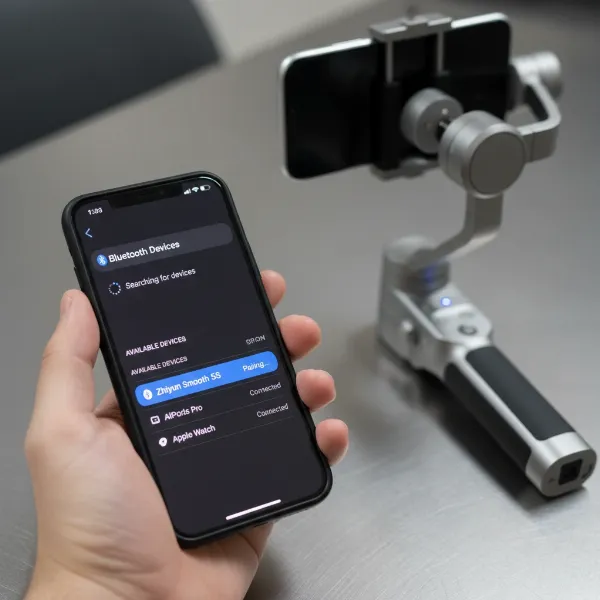 A hand holding a smartphone attempting to connect to a gimbal via a Bluetooth connection screen.
2. Reset and Reconnect Tactics
Sometimes, a fresh start is all that’s needed to clear a stubborn connection issue. Electronic devices can experience temporary software glitches or hang-ups that prevent proper communication.
The simplest yet often most effective fix is to reboot everything. Power off your gimbal completely, then restart your smartphone or camera. Once both devices have fully restarted, power on your gimbal and re-attempt the pairing process through its dedicated app. This clears any temporary software errors that might be blocking the Bluetooth signal.
If rebooting doesn’t work, consider telling your phone or camera to “forget” or “unpair” any previous Bluetooth profiles for your gimbal. Navigate to your device’s Bluetooth settings, find the gimbal’s name in the list of previously connected devices, and select the option to forget or unpair it. This ensures that your phone isn’t trying to connect using old, corrupted, or incorrect pairing data. After unpairing, put your gimbal back into pairing mode and try connecting again as if it were the first time. Some gimbals even offer a hardware Bluetooth reset function, often involving a specific sequence of button presses (e.g., repeatedly pressing a function button five times and then power cycling the device). Refer to your gimbal’s manual for any such specific reset procedures.
3. Software and Firmware Solutions
Outdated software is a common, yet often overlooked, cause of connectivity problems. Manufacturers frequently release updates to improve performance, add features, and fix bugs, including Bluetooth stability.
Regularly updating your gimbal’s firmware is crucial. Firmware updates can resolve known Bluetooth issues, enhance compatibility with newer phone models, and improve overall stability. Connect your gimbal to its respective app and check for available firmware updates. Follow the in-app instructions carefully to perform the update. Similarly, ensure that the manufacturer’s app itself is up-to-date. App developers regularly push updates to fix bugs and improve integration with the gimbal. Check your device’s app store for the latest version.
Lastly, verify that the gimbal app has all the necessary permissions on your smartphone. On Android devices, enabling location services is often required for Bluetooth scanning and pairing to function correctly. Without these permissions, the app might not be able to detect or connect to your gimbal, even if Bluetooth is enabled.
4. Advanced Troubleshooting for Specific Scenarios
For those using gimbals with dedicated cameras, the troubleshooting might involve a few extra steps specific to camera settings.
If you’re using a camera gimbal that connects via Bluetooth to control camera functions (like a DJI Ronin series with a Sony or Canon camera), ensure your camera’s Bluetooth settings are correctly configured. For Sony cameras, confirm that “Bluetooth Function” and “Bluetooth Rmt Ctrl” are enabled. For Canon cameras, ensure “Bluetooth” is enabled and “Connect to Wireless Remote” is selected under “Wi-Fi/Bluetooth connection.” You may also need to adjust drive modes for remote shooting. As a last resort, consider performing a network settings reset on your camera. This can clear any persistent communication glitches, though it will also reset Wi-Fi passwords and other network-related configurations.
When to Seek Professional Help
If you’ve systematically worked through all the above troubleshooting steps and your gimbal still refuses to connect via Bluetooth, it might indicate a more serious issue. In such cases, the problem could lie with a faulty Bluetooth module within the gimbal itself or a hardware defect in your smartphone or camera. If your gimbal is still under warranty, contact the manufacturer’s support for assistance or to arrange a repair or replacement.
Conclusion
Bluetooth connection issues with gimbals can be perplexing, but by following a structured troubleshooting approach, you can often resolve them efficiently. Remember to start with the basics: ensure your devices are powered and correctly configured, then move on to mastering the specific pairing process through the manufacturer’s app. Don’t underestimate the power of a simple reboot or the importance of keeping your firmware and apps updated. With a little patience and persistence, you’ll restore your gimbal’s connectivity and get back to capturing incredible, stable footage.
What are your go-to troubleshooting steps when your gimbal won’t connect?
Frequently Asked Questions
Why is my gimbal not showing up in my phone’s Bluetooth list?
Your gimbal might not be in pairing mode, its battery could be low, or there might be software glitches on either the gimbal or your phone. Ensure the gimbal is fully charged, powered on, and actively broadcasting its Bluetooth signal by entering its specific pairing mode as per its manual.
Should I connect my gimbal directly through phone settings or the app?
Always prioritize connecting your gimbal through its dedicated manufacturer’s app. These apps are designed to optimize the connection, unlock full features, and provide a more stable link compared to a direct pairing via your phone’s general Bluetooth settings.
How often should I update my gimbal’s firmware?
It’s recommended to check for and apply gimbal firmware updates periodically, typically when you notice new versions are released by the manufacturer. Updates often include bug fixes, performance enhancements, and improved compatibility, which can prevent connection issues.